PDF compression
Reduce large PDF documents like reports, scanned files, forms, manuals, and school documents.

Drag in PDFs, images, videos, or audio, choose Light, Medium, Strong, Maximum, or custom settings, then compress, review, open, and share results from one clean Mac workflow.
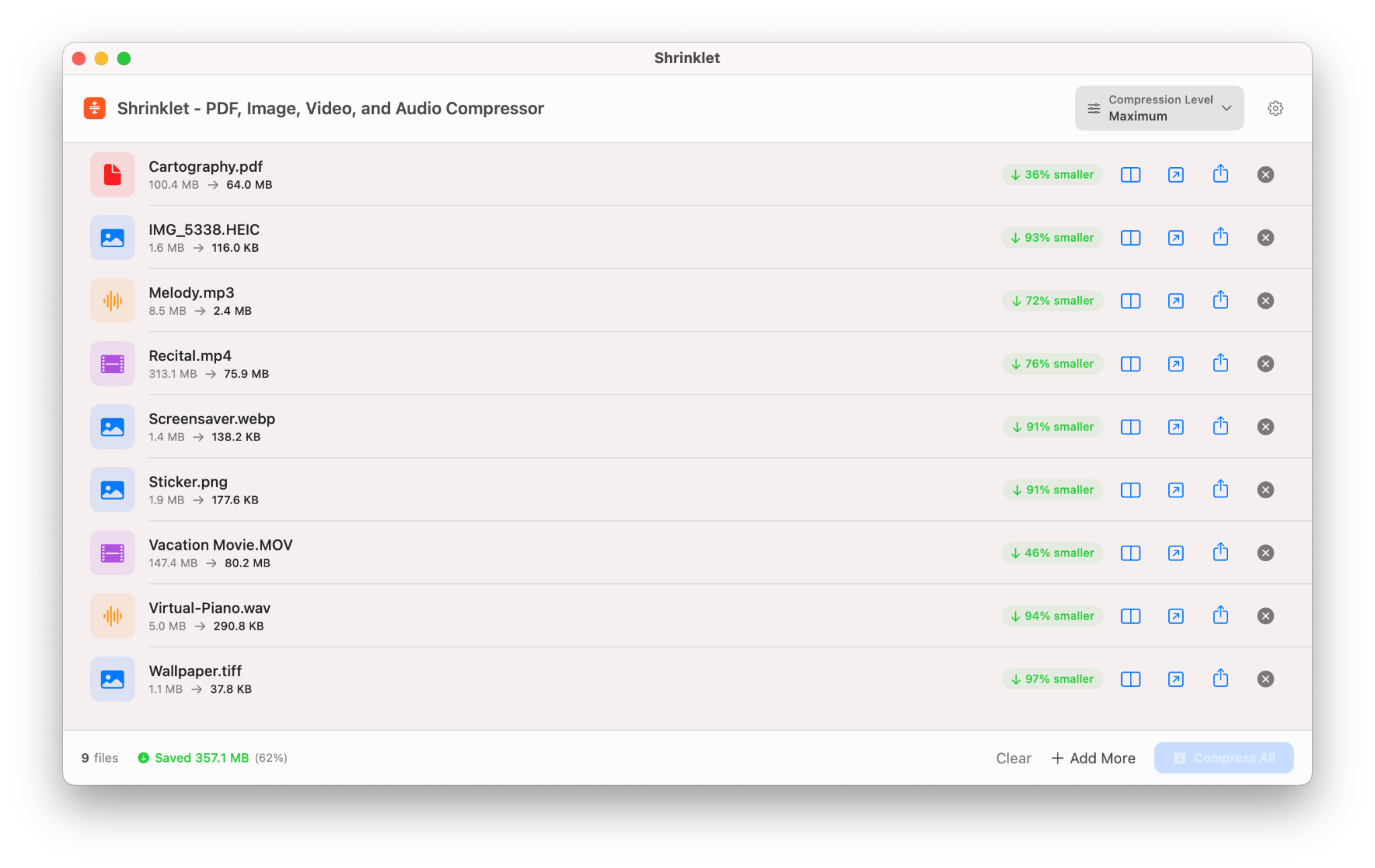
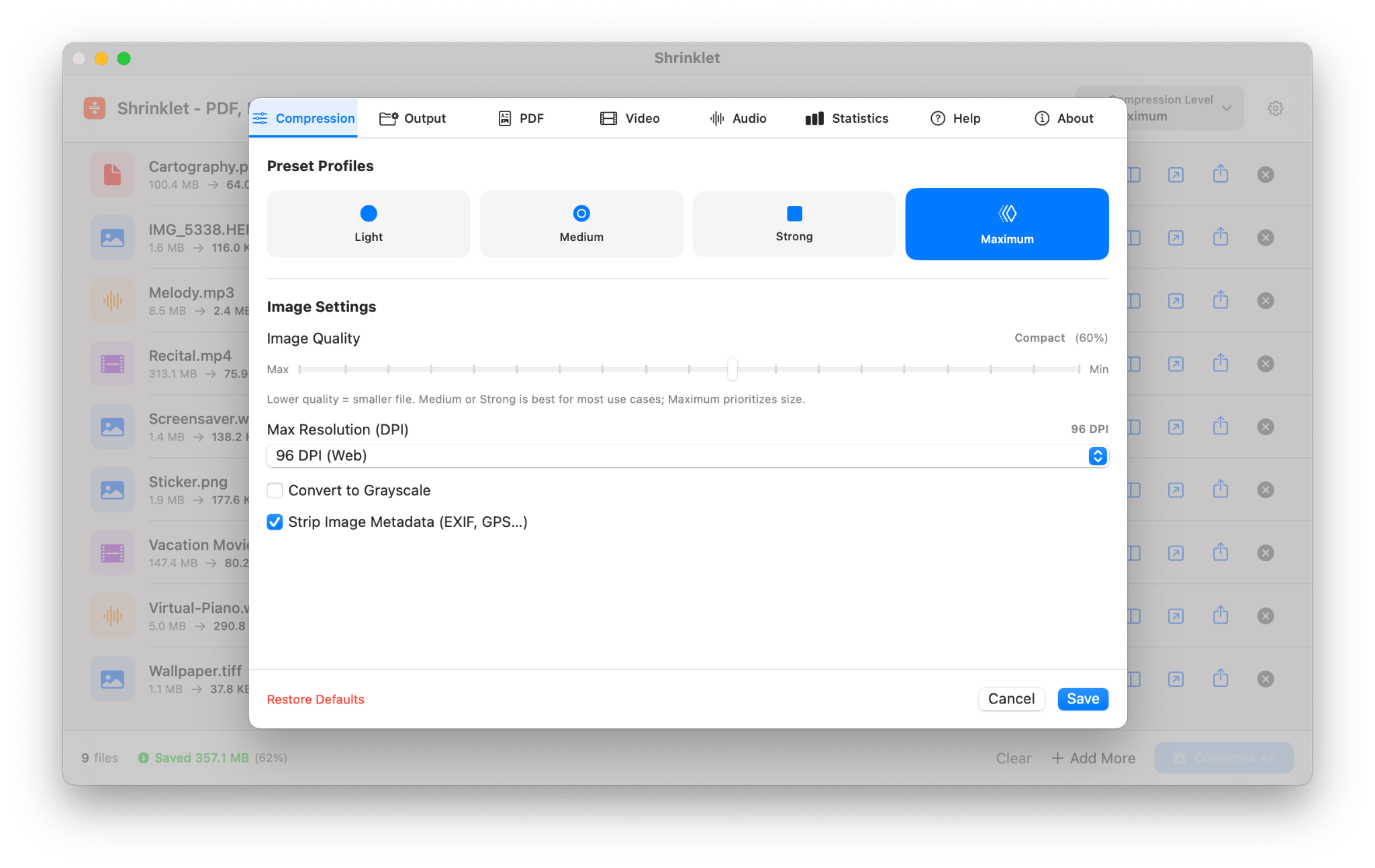
Shrinklet makes PDFs, images, videos, and audio smaller with a clean Mac interface, batch workflows, useful presets, review tools, progress feedback, and clear before-and-after savings.
Reduce large PDF documents like reports, scanned files, forms, manuals, and school documents.
Compress JPG, PNG, TIFF, HEIC, GIF, WebP, and other common images without a complicated workflow.
Shrink MP4, MOV, and other macOS-readable video files using practical resolution and frame-rate controls.
Convert supported audio to efficient M4A/AAC output with simple bitrate, sample-rate, and channel settings.
Fine-tune image quality, DPI, PDF metadata, video resolution, audio bitrate, output naming, and save location.
Compare originals and compressed results side by side for PDFs, images, video, and audio before sending anything.
Drag, choose a preset, compress, and save space — all privately on your Mac.
Start from the large dashed drop zone and add PDFs, images, videos, audio, or a folder.
Use the Medium dropdown or switch to Light, Strong, Maximum, or Custom.
Review the pending queue and click Compress to process the whole batch locally.
Open the compressed file, compare the result, share it from the macOS share sheet, or remove it from the completed list.
The animation explains why Shrinklet is useful: bulky documents, images, videos, and audio files become dramatically smaller while the app shows progress, savings, and before-and-after file sizes clearly.

The website now matches Shrinklet’s latest interface for PDF, image, video, and audio compression.
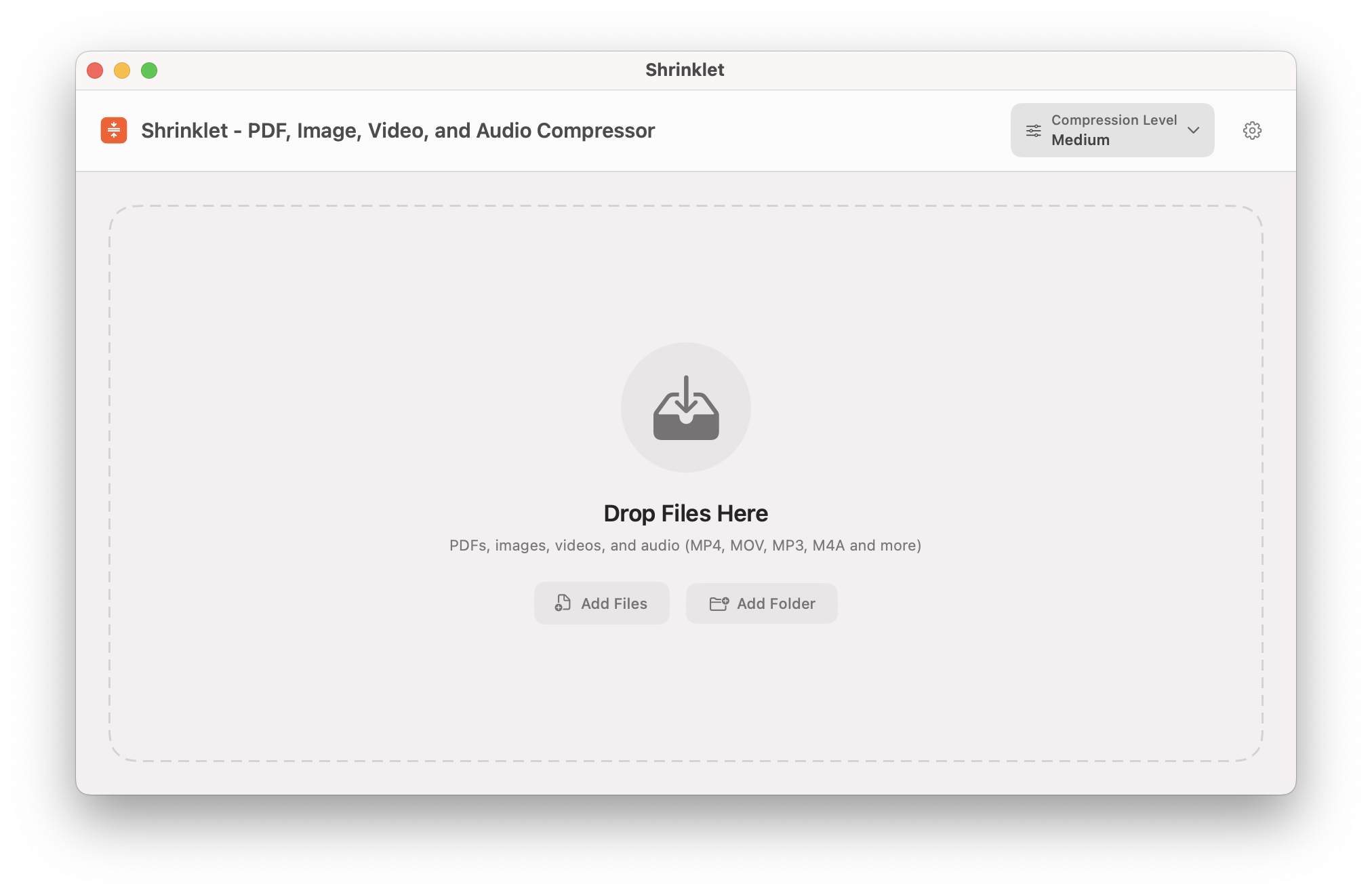
Drop files, add individual files, or add a whole folder from the first screen.
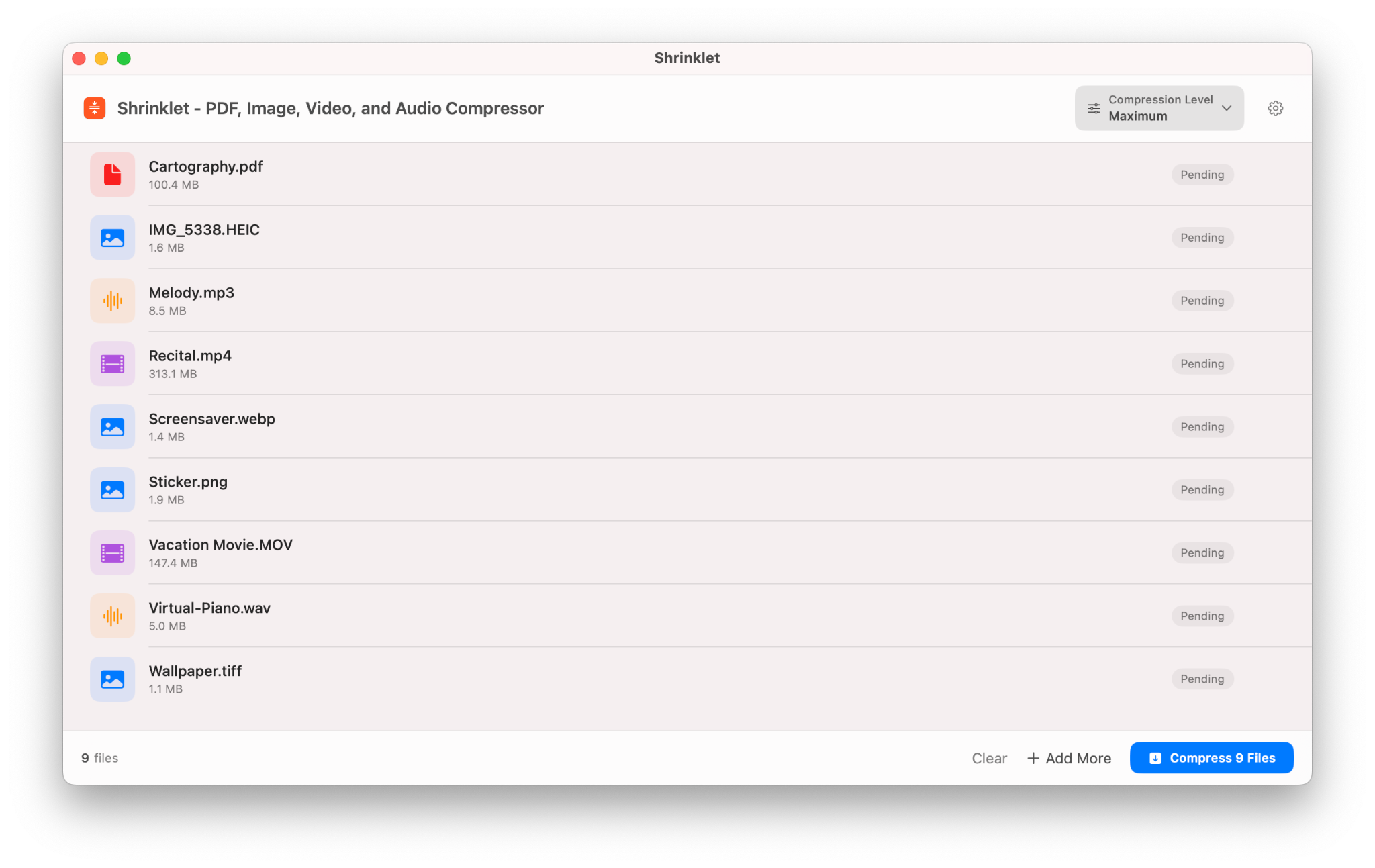
PDFs, images, videos, and audio files can sit together in one batch with clear file icons and pending status.
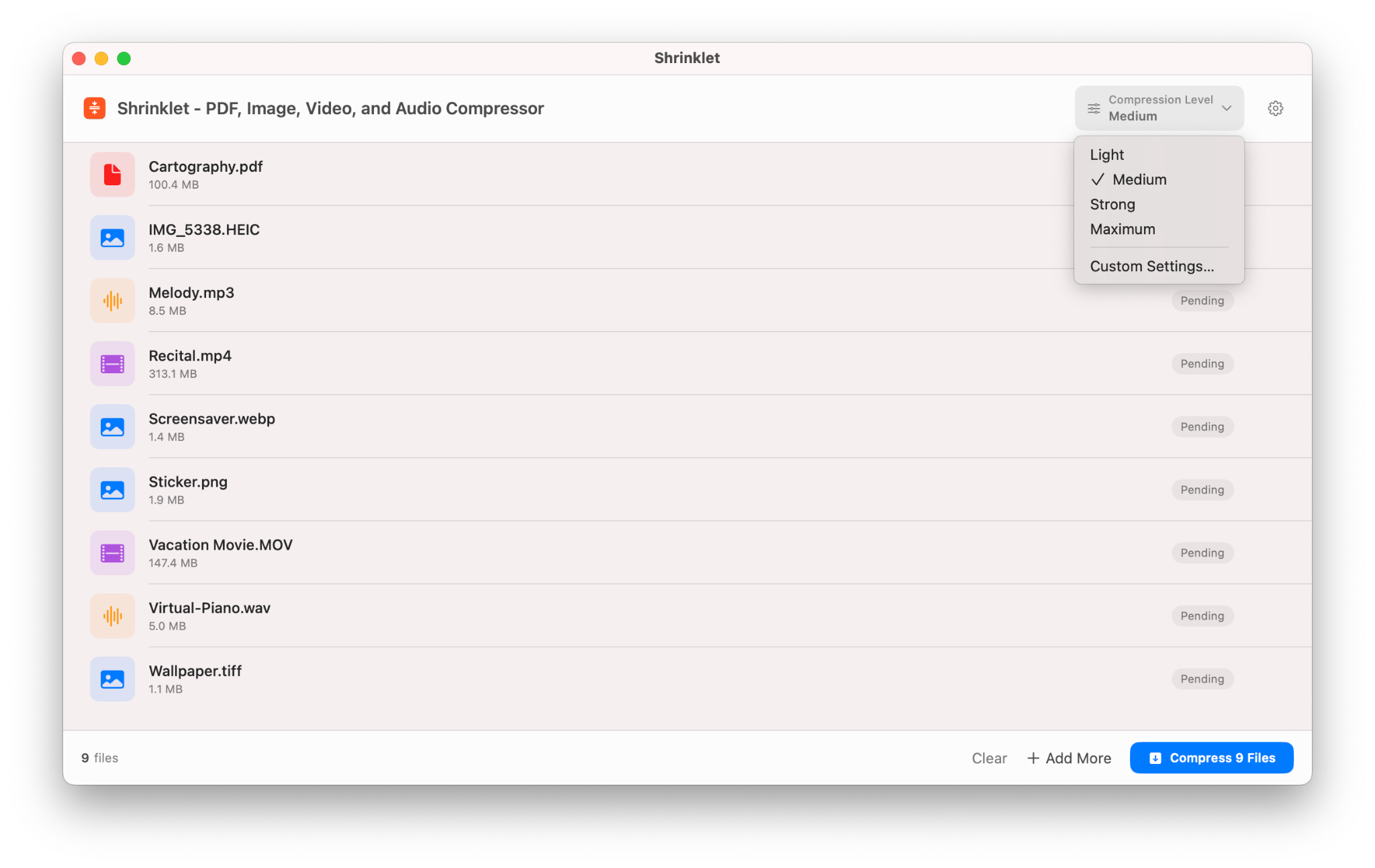
Light, Medium, Strong, Maximum, and Custom Settings make the tradeoff easy to understand.
Completed batches show original size, compressed size, percentage saved, review, open, share, and remove actions.
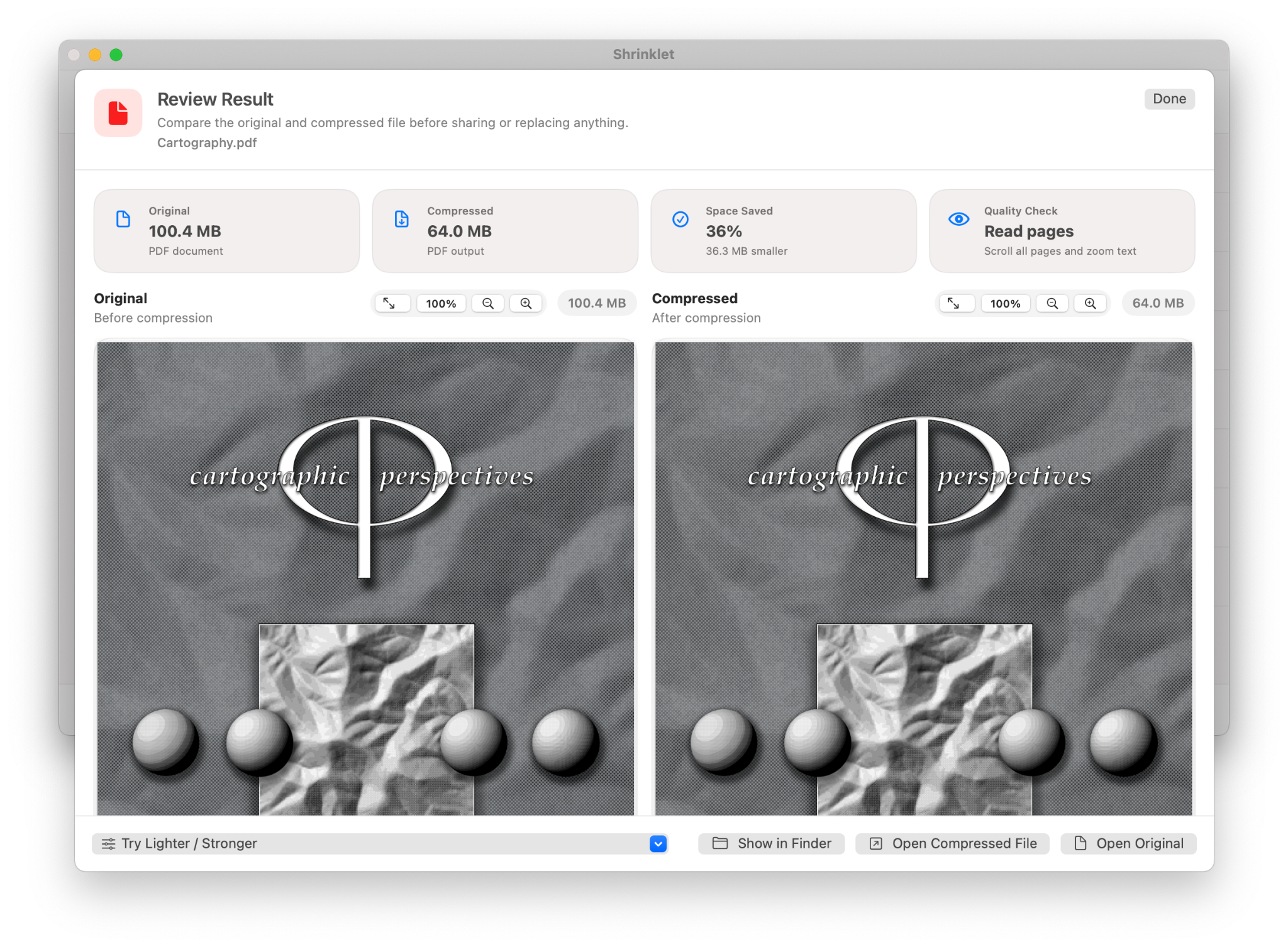
Compare original and compressed PDFs before replacing, sharing, or sending the output.
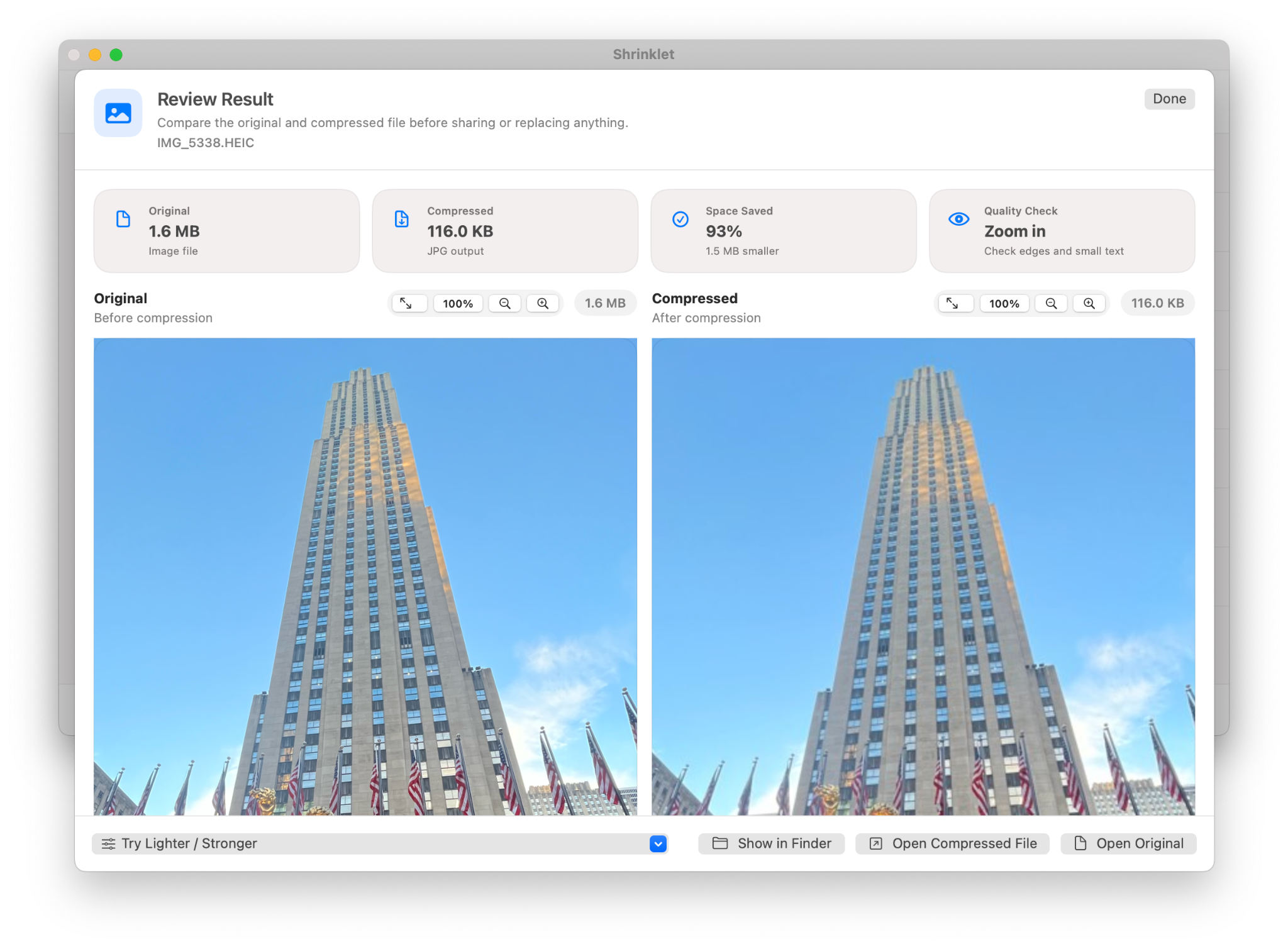
Zoom in and compare edges, text, and detail so users understand the quality tradeoff.
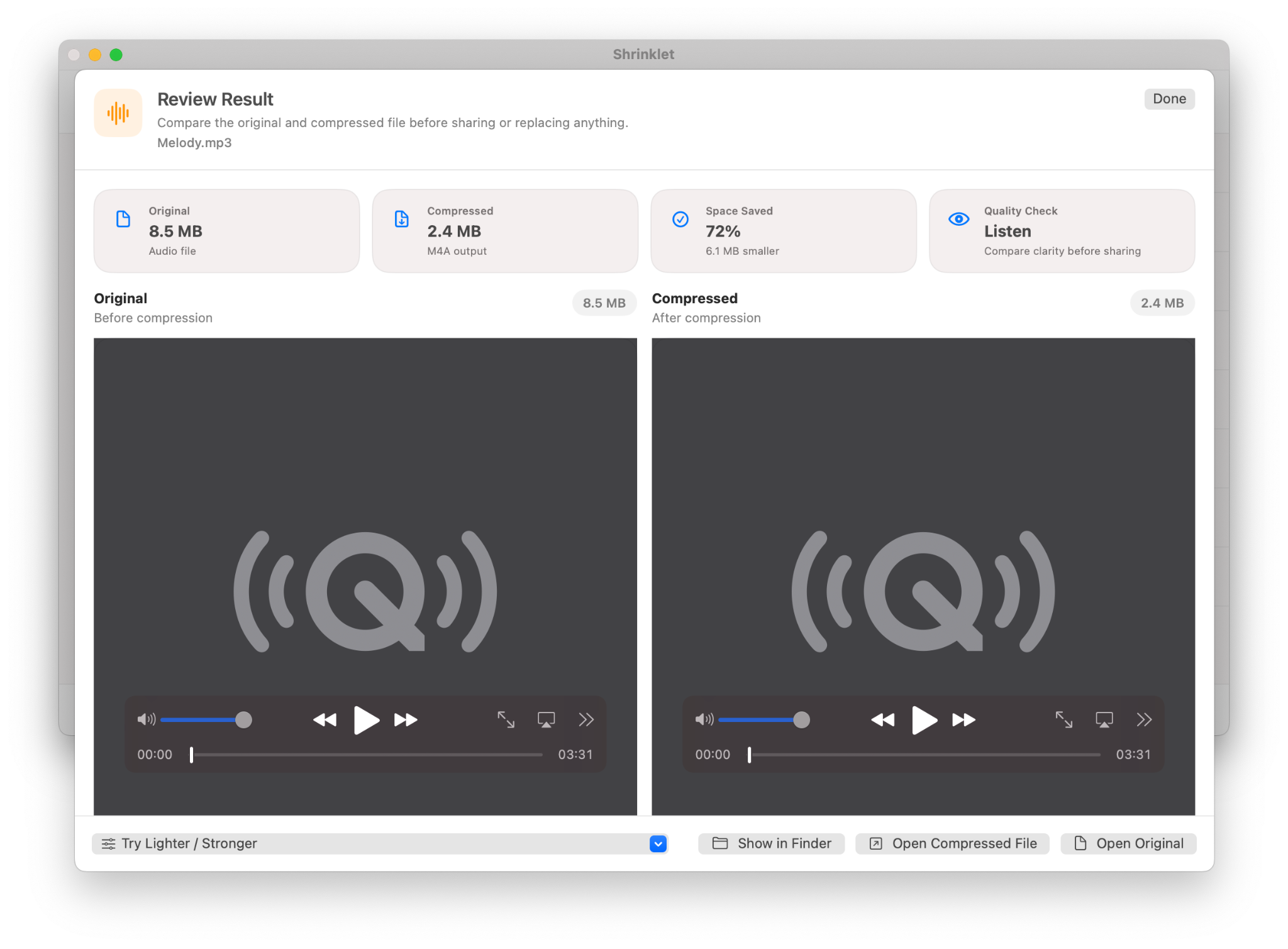
Audio review uses native playback controls for the original and compressed versions.
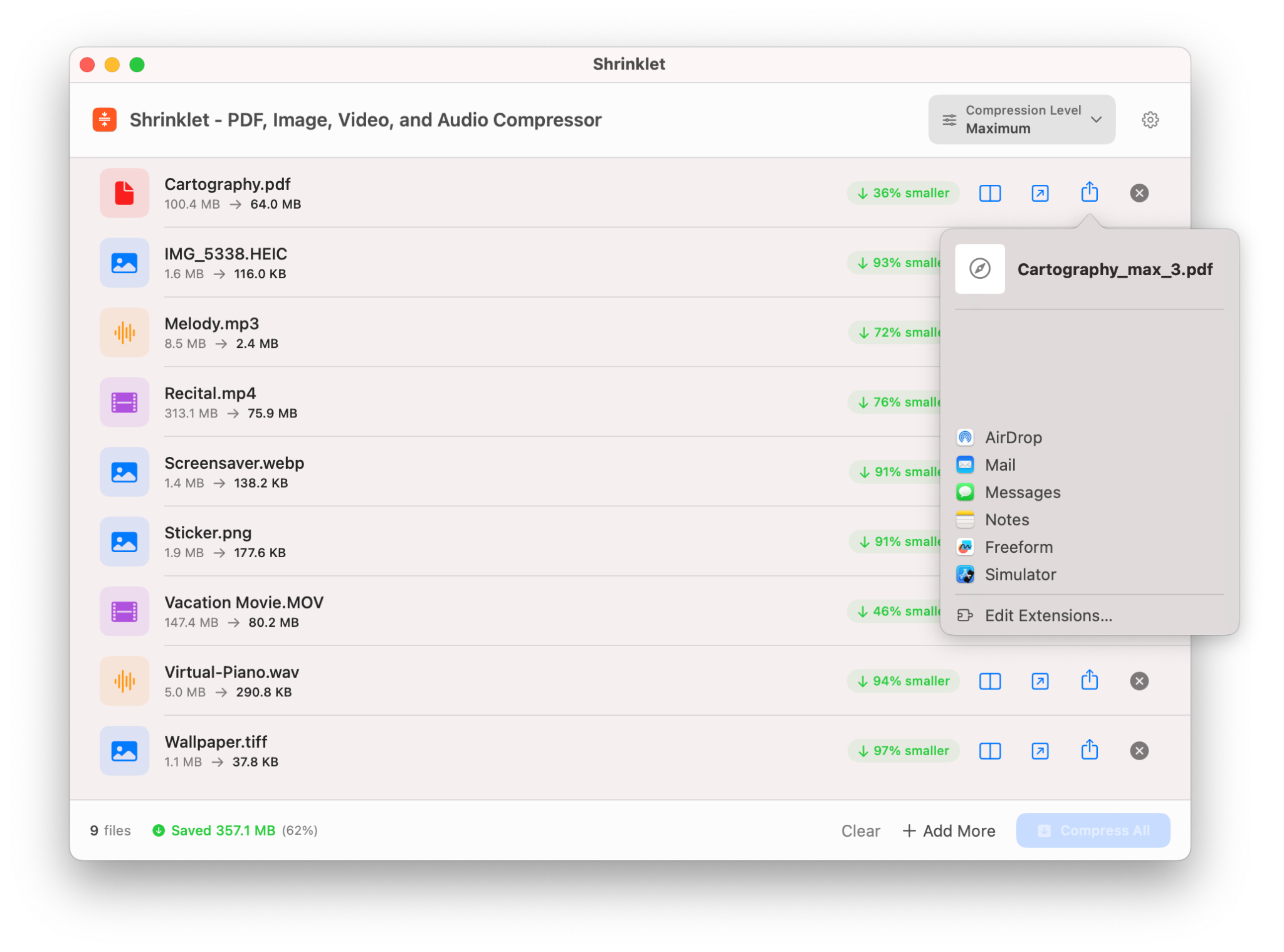
The native macOS share sheet supports AirDrop, Mail, Messages, Notes, and other extensions.
Power users can adjust presets, image quality, DPI, grayscale conversion, and metadata stripping.
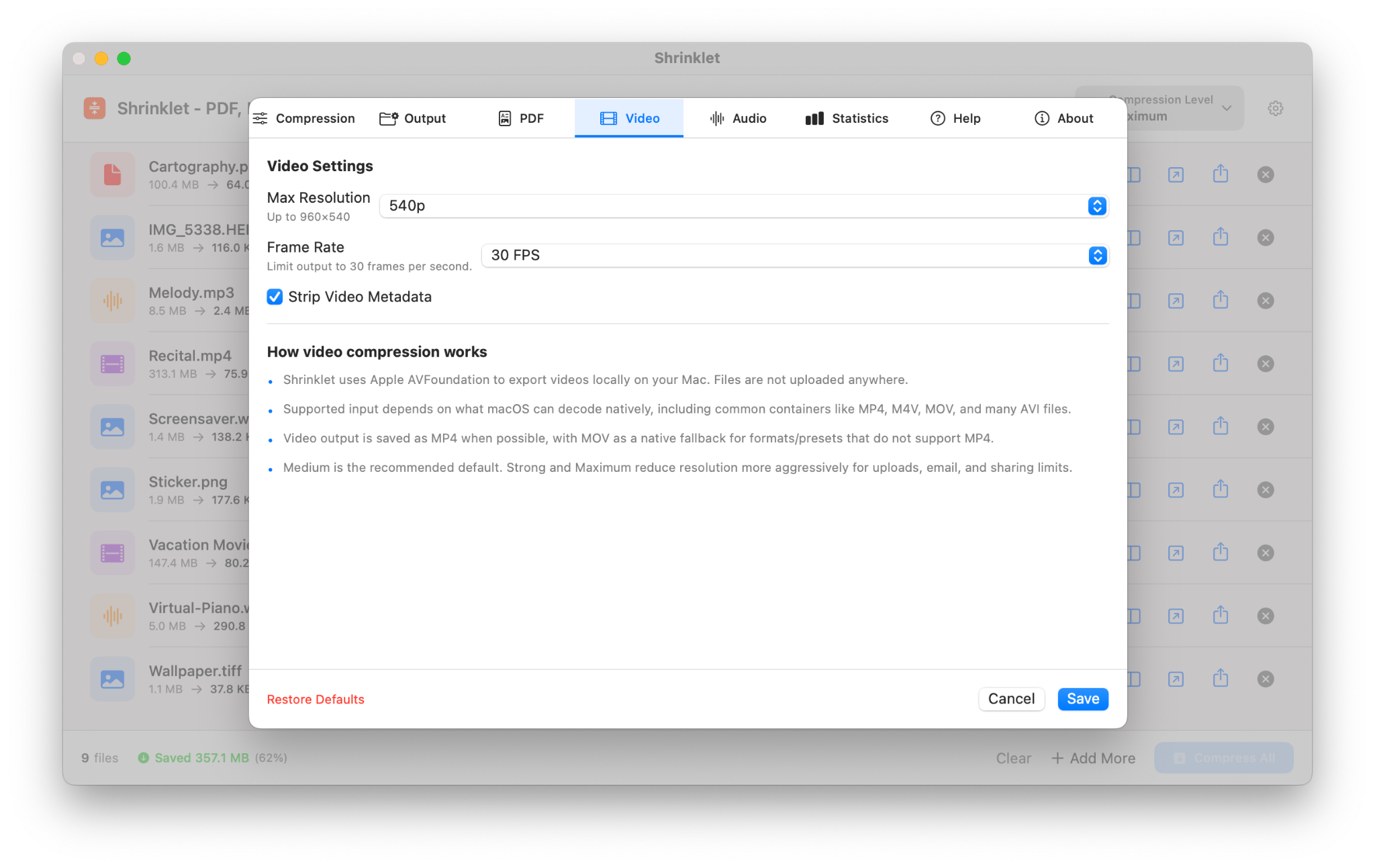
Control max resolution, frame rate, and metadata removal for video compression.
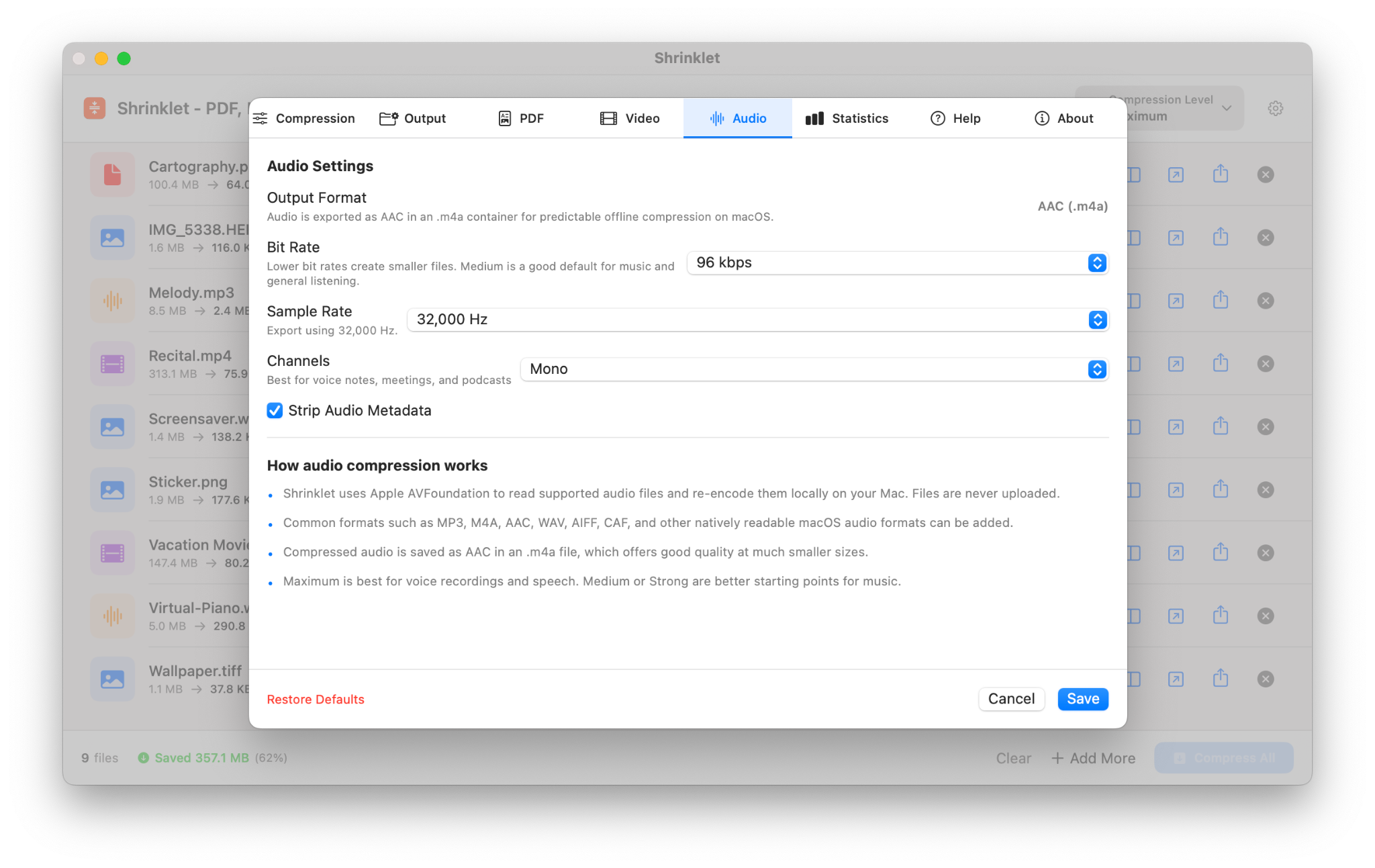
Choose bitrate, sample rate, mono or stereo output, and metadata stripping.
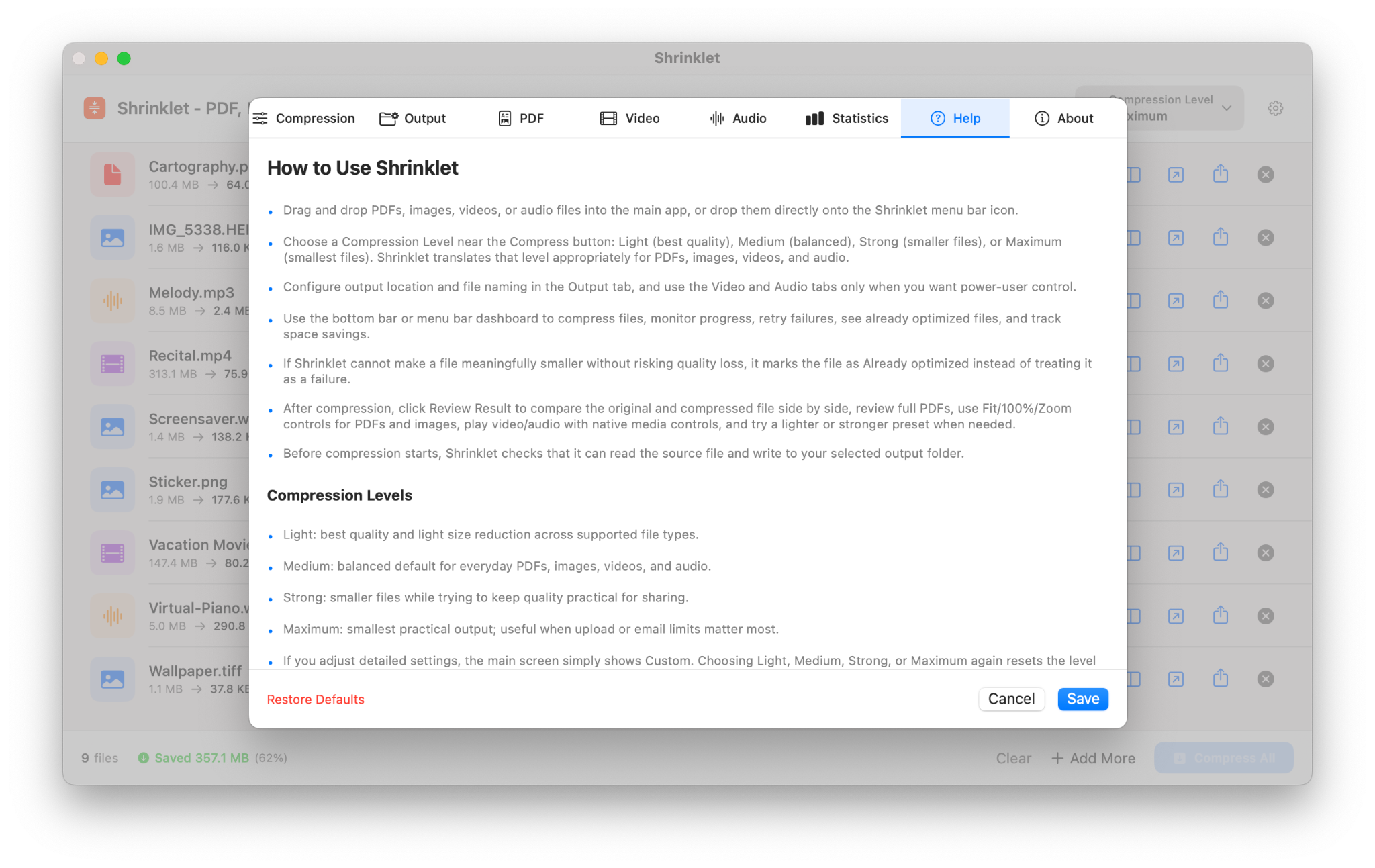
The settings window includes Help, Statistics, and About tabs so users can learn the workflow without leaving the app.
PDF documents, common image files, supported video files such as MP4 and MOV, and supported audio files such as MP3, M4A, and WAV.
No. Shrinklet is designed for local Mac compression, so your files are processed on your Mac instead of being uploaded to a web service.
Light favors quality, Medium is balanced, Strong makes files smaller, and Maximum prioritizes the smallest practical output size.
Yes. Add PDFs, images, videos, audio files, or a folder, then compress the whole batch together.
Yes. Review Result lets users compare PDFs and images side by side and listen to audio before sharing or replacing anything.
No. The core flow is simple: add files, choose a preset, compress, review, and view the saved space.
Download Shrinklet from the Mac App Store and start saving space in a few clicks.